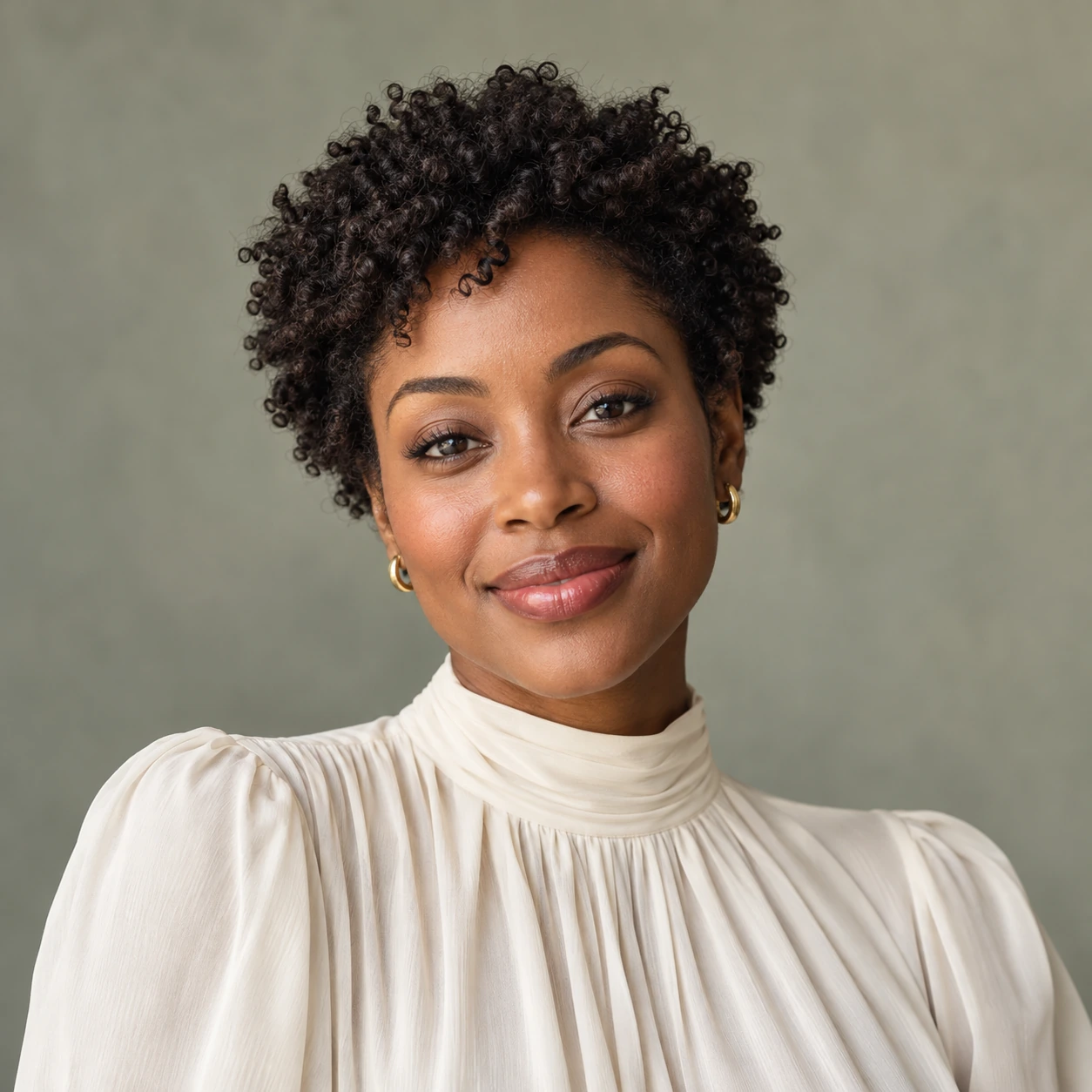
 Illustrative example
Give your portrait a fresh direction
A photo face swap can help you explore a new character or visual concept. Start with a well-lit portrait, then change face in photo projects without rebuilding your composition from scratch.
Upload a photo and reference face. Swap naturally, compare easily.
Automatically replaces the largest detected face.
Failed generations cost no credits.
Illustrative preview

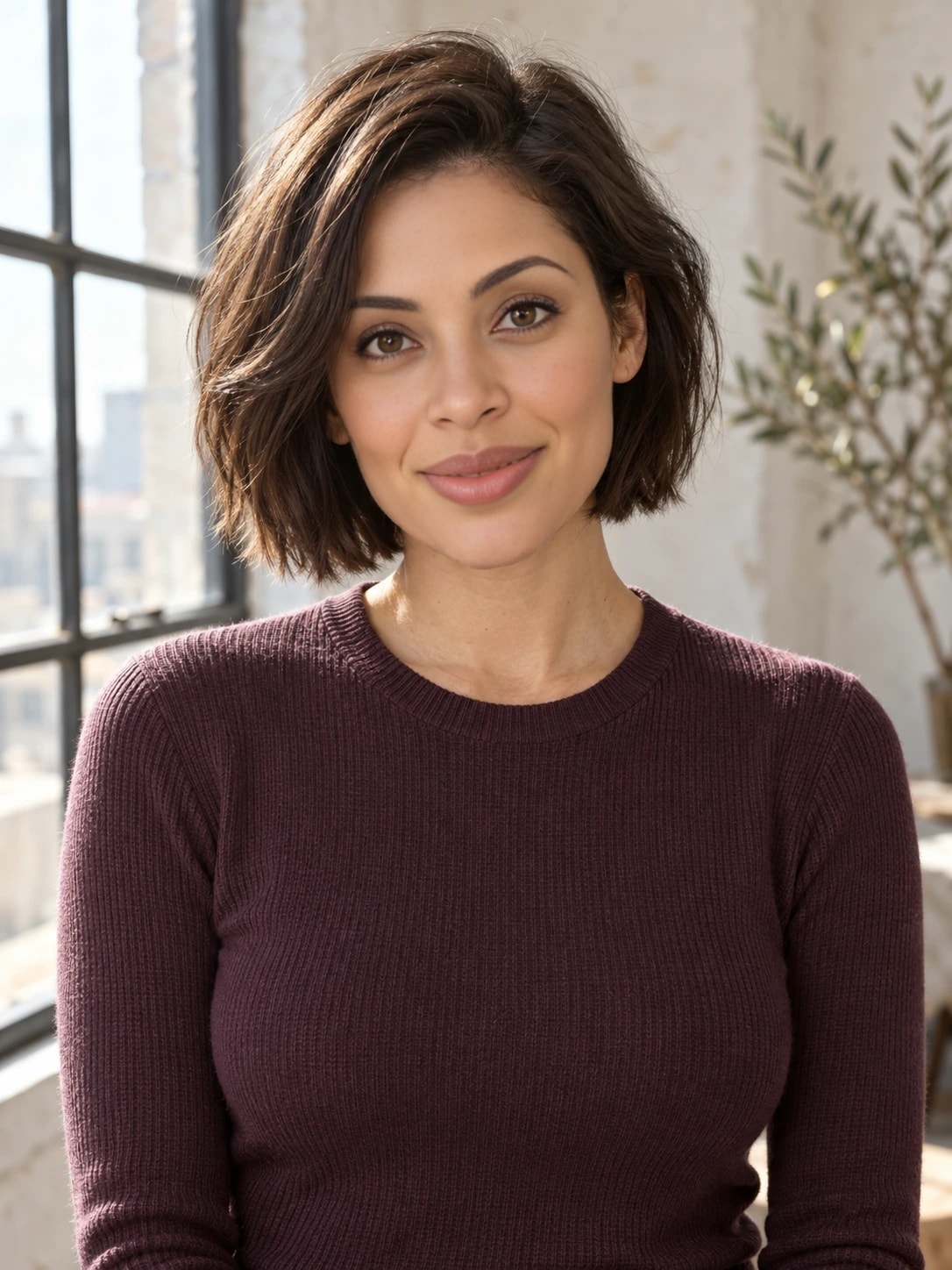
 Reference face
A new face. Your original scene.
Change Face in Picture brings your original photo and a reference portrait into one simple workspace. Try a photo face swap for a creative portrait, a moodboard or a new take on a favourite shot.
To face swap two photos, use one for the scene and one for the face. Compare the result with your original before deciding what to keep.
Change Face in Picture Original scene
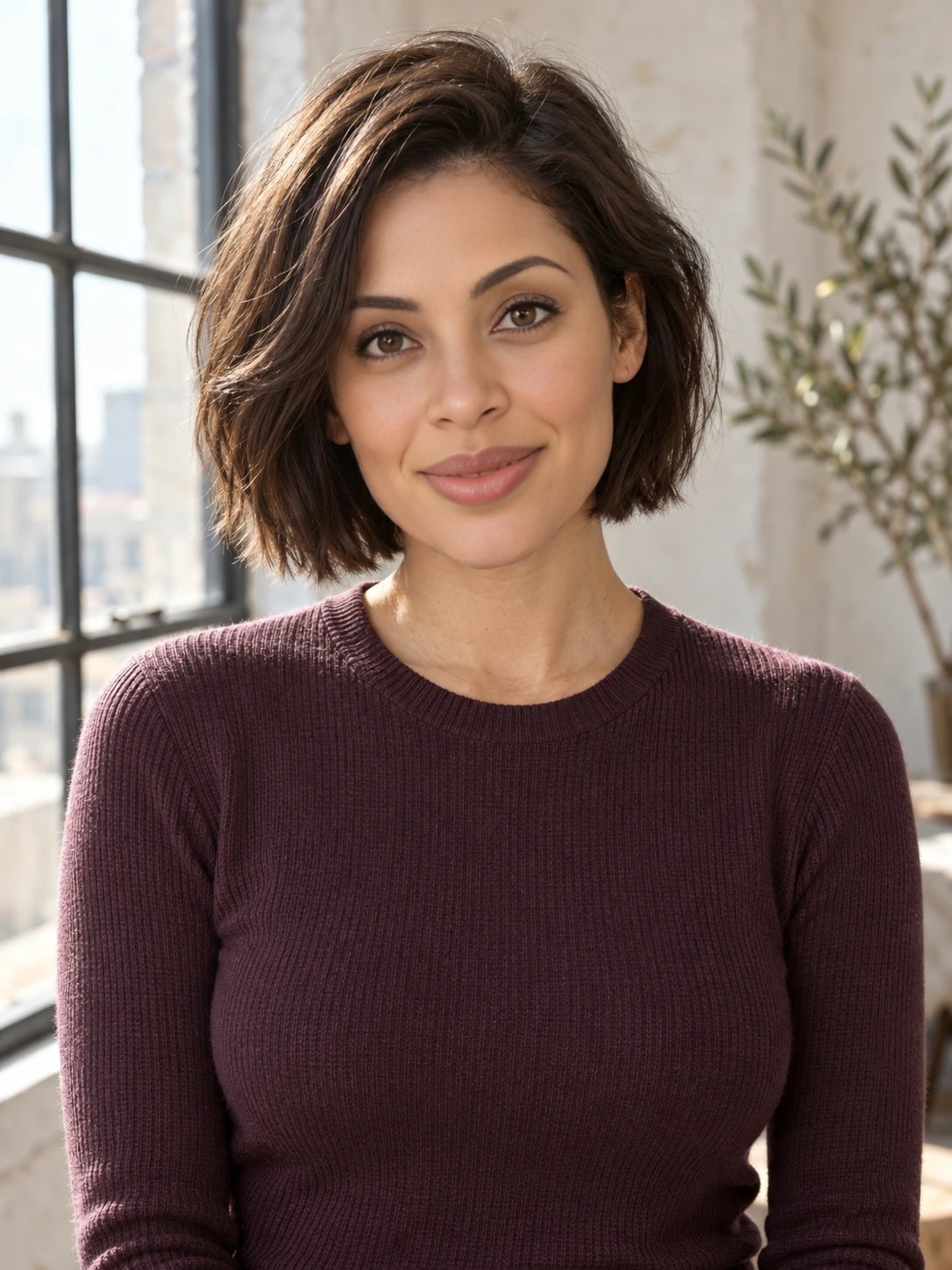 New perspectiveReference portrait
Made for your ideas
Illustrative exampleA photo face swap can help you explore a new character or visual concept. Start with a well-lit portrait, then change face in photo projects without rebuilding your composition from scratch.
 Illustrative example
Use the replace face in photo workflow with Standard to automatically replace the largest detected face. Each task uses one reference portrait. Review the result and surrounding faces before saving.
From upload to download
A straightforward image face swap, with a comparison before download.
Start your image face swap with a JPG, PNG or WebP up to 15 MiB. A large, visible face is easier to work with than a tiny face in the background.
To face swap two photos, add a separate portrait showing the identity you want to use. Choose one adult face and an angle close to your original.
After you change face in photo compositions, compare both versions. Look at the eyes, jawline and skin transitions before downloading your image.
A better starting point
A convincing image face swap starts with compatible photos. When you replace face in photo scenes, these small choices give the model clearer information to work with.
Choose a sharp adult portrait with visible eyes and a clear jawline. Skip sunglasses, heavy filters and hands over the face.
A similar head angle gives the model a better starting point. Strong profiles and extreme tilts are harder to match.
Use a well-lit face with natural skin detail. Deep shadows and motion blur can make the result less consistent.
Clear before you create
Choose Standard for a first photo face swap, or try Pro with a single-person original. Pro uses a different model; it is not a resolution setting.
Credits are reserved on submission and charged after a usable result is saved. Technical failures release the reservation; visual quality concerns can be reported to support.
Your uploads and results are stored privately for 7 days and can be deleted earlier. WaveSpeed processes the files to create your result; its retention rules also apply.
How we handle your filesA few things worth knowing
Before you use Change Face in Picture, get to know the formats, face selection and review process.
You need an original image and a separate reference portrait. To face swap two photos, upload the scene first, then the face you want to use. Use adult portraits you have permission to edit and share.
Standard automatically replaces the largest detected face. You cannot choose a different person or assign separate faces to everyone. Use a single-person original for Pro and review your result before saving.
Original and reference images can be JPG, PNG or WebP, up to 15 MiB each. For fine detail, choose a sharp original instead of an enlarged screenshot or a heavily compressed image.
You can try, but extreme profiles, hidden eyes and strong blur make matching harder. A reference with a similar pose and even light is a better starting point. Results still need a visual check.
No. Standard costs 10 credits and Pro costs 20. Pro uses a different image model and is available for single-person photos only. There is no 2K or 4K resolution selector.
A technical failure releases the reserved credits. A completed image can still have visual issues, so compare it with your original. Quality concerns can be reported to support and are not automatically refunded.
Yes. Your task continues after you close the page. Sign in to the same account to find the result during its 7-day retention window. Download it before expiry, or delete it earlier if you prefer.
Bring a photo you like and a clear reference portrait. Your workspace is ready above.