Compare shades on your own photo
Use the clothes color changer to compare emerald, burgundy or a custom shade on the same outfit. Each color is a separate generation, so you can choose which result to keep.
Clothes color changer lets you explore a new shade on the clothes you already wear. Upload one photo and choose a color to create an AI preview.
One photo. No garment reference needed.
Example edit
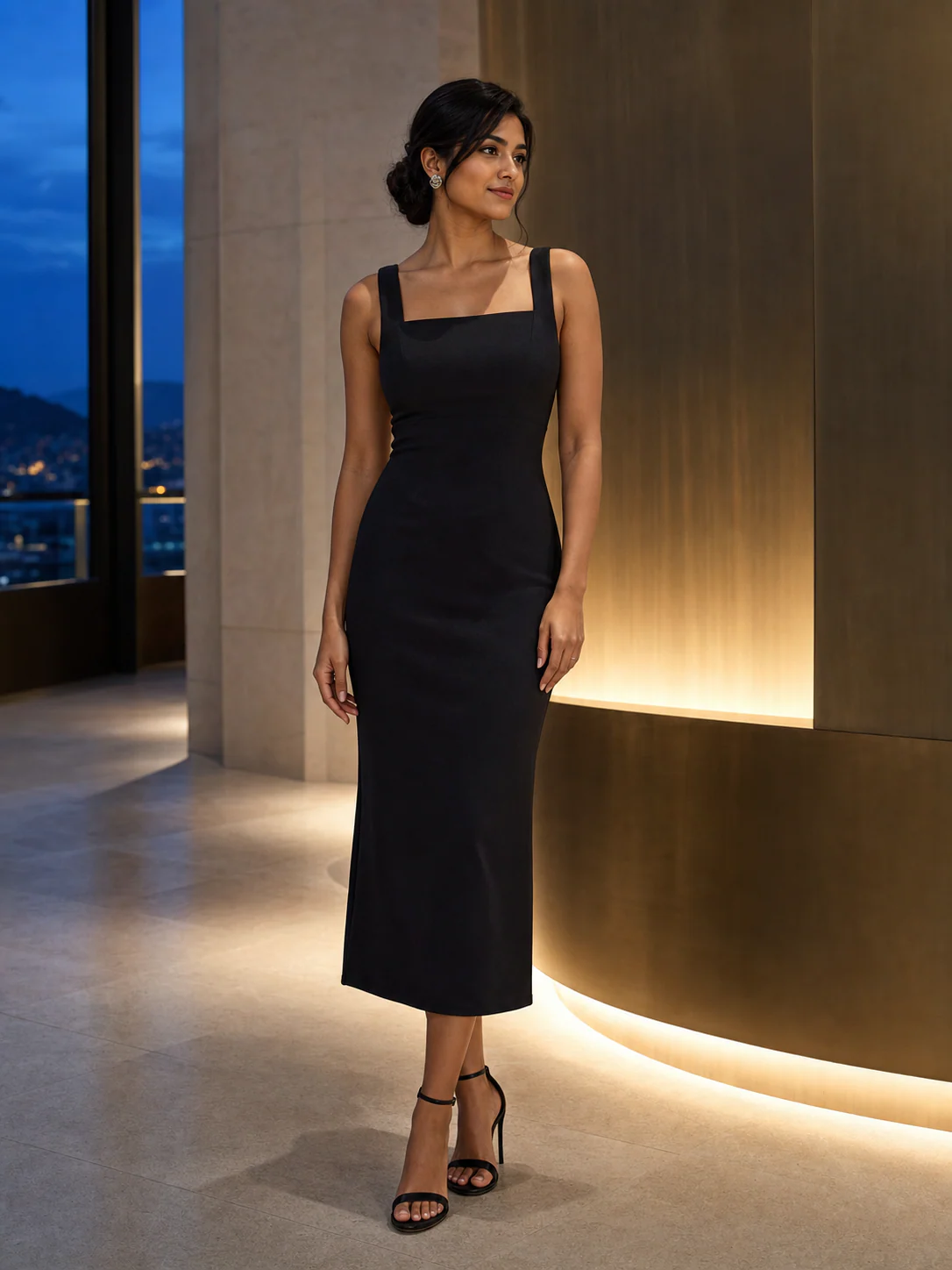
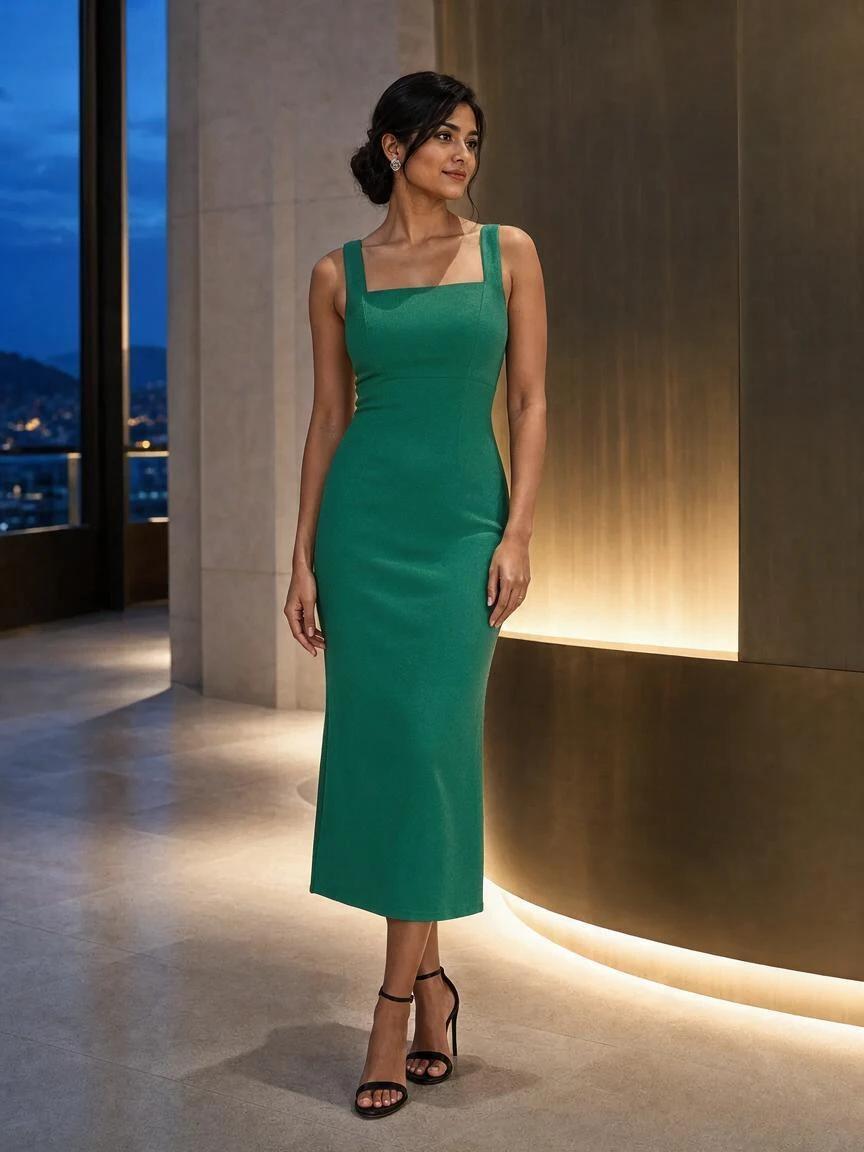
Your first Standard generation is free across SameMuse. Each new preview is a separate generation.
One photo, a new direction
This example uses the same black dress photo and an emerald color selection. Compare the neckline, hem, folds and background to see how closely the edit follows the original.
Use the clothes color changer to compare emerald, burgundy or a custom shade on the same outfit. Each color is a separate generation, so you can choose which result to keep.
Look at the neckline, sleeve shape, seams and hem. Recoloring is meant to preserve the garment design; intricate prints and fine details can still change, so inspect the result.
Folds and shadows make a fabric appear lighter or darker than the selected swatch. The result is a styling preview, not a calibrated color sample or a prediction of a real dye treatment.
A clothes color changer uses your photo and a selected shade to recolor clothing. Choose the main garment or specify a top, trousers, dress or jacket. No separate clothing image is required.
Choose a photo with the clothing visible and reasonably even lighting. Keep hair, hands and bags clear of the area you want to recolor.
Choose a preset or use the custom color picker. For a layered outfit, open the garment selector and choose the top, bottoms, dress or outerwear.
Create the preview, then select Try another color to keep your photo and explore a second shade. Open earlier results in Recent looks before downloading your favorite.
Good to know
Your first standard try-on works without an account, and your photos are removed automatically.
Upload a person photo and choose a color. The AI edits the selected clothing area while being instructed to preserve the person, scene, garment structure and fabric texture. Review the output against the original because details outside the target area can still change.
Yes. Open Choose which garment to recolor and select the relevant item. A clear single-person photo makes the target easier to identify. When several overlapping garments are similar in color, check that the intended layer was recolored.
Yes. Use Custom color to select a shade beyond the preset swatches. The selected hexadecimal color guides the edit, but lighting, shadows and fabric texture affect its appearance. This is not a guarantee of exact RGB values across the finished garment.
The model is instructed to preserve prints, logos, stitching and fabric texture while changing the base color. Small lettering, complex patterns and sheer or reflective fabrics may change. Inspect those details before using the result in a product listing or sharing it.
No. A single photo and a color selection are enough. To replace the garment design instead, use the reference-image try-on tool. To imagine a new outfit without a reference, use AI Outfit Generator with a written description.
Your first Standard generation across SameMuse is free without an account. After that, sign in to continue: Standard uses 10 credits and HD uses 20. Switching tools does not reset the free trial. Failed generations release reserved credits.
SameMuse stores your images privately and automatically removes them after seven days. Download the results you want to keep before they expire. We use the images to provide the requested edit and do not use them to train AI models.
Credits, plainly priced
Standard costs 10 credits. HD costs 20. Failed generations cost nothing.
300 credits · 30 Standard or 15 HD try-ons · Purchased credits never expire
$7.99
Compare one-time packs with the Monthly plan, including credit expiry and billing rules.
Compare all plans