How to Compare Outfits on Your Own Photo Before Buying

Stop guessing between two tabs in your cart: lock your own photo once and review up to four candidate outfits side by side.

4 min guideUpdated 2026-11-26Compare outfits now
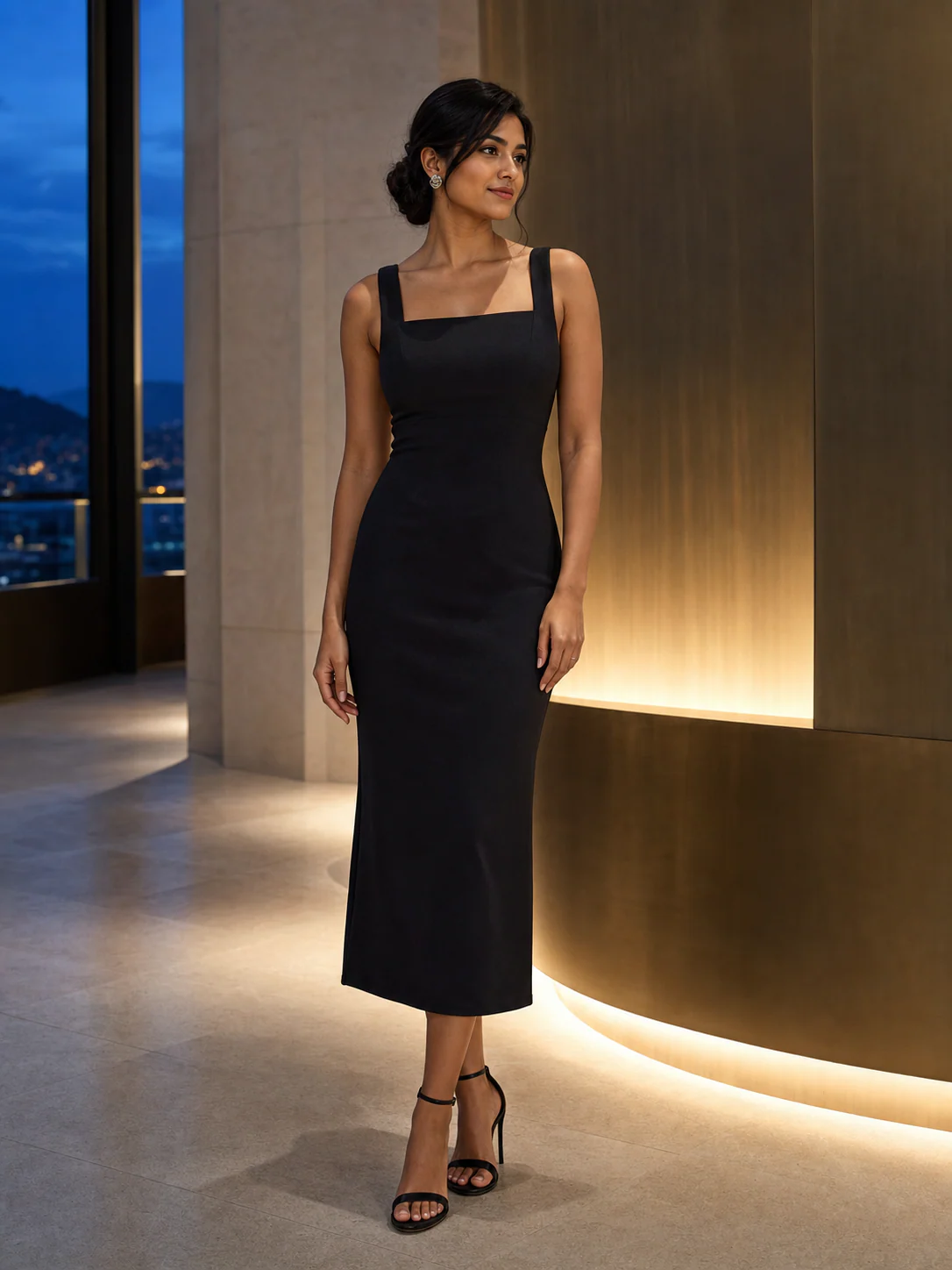
Locked full-length base photo used across multiple outfit comparisons
Locked photo
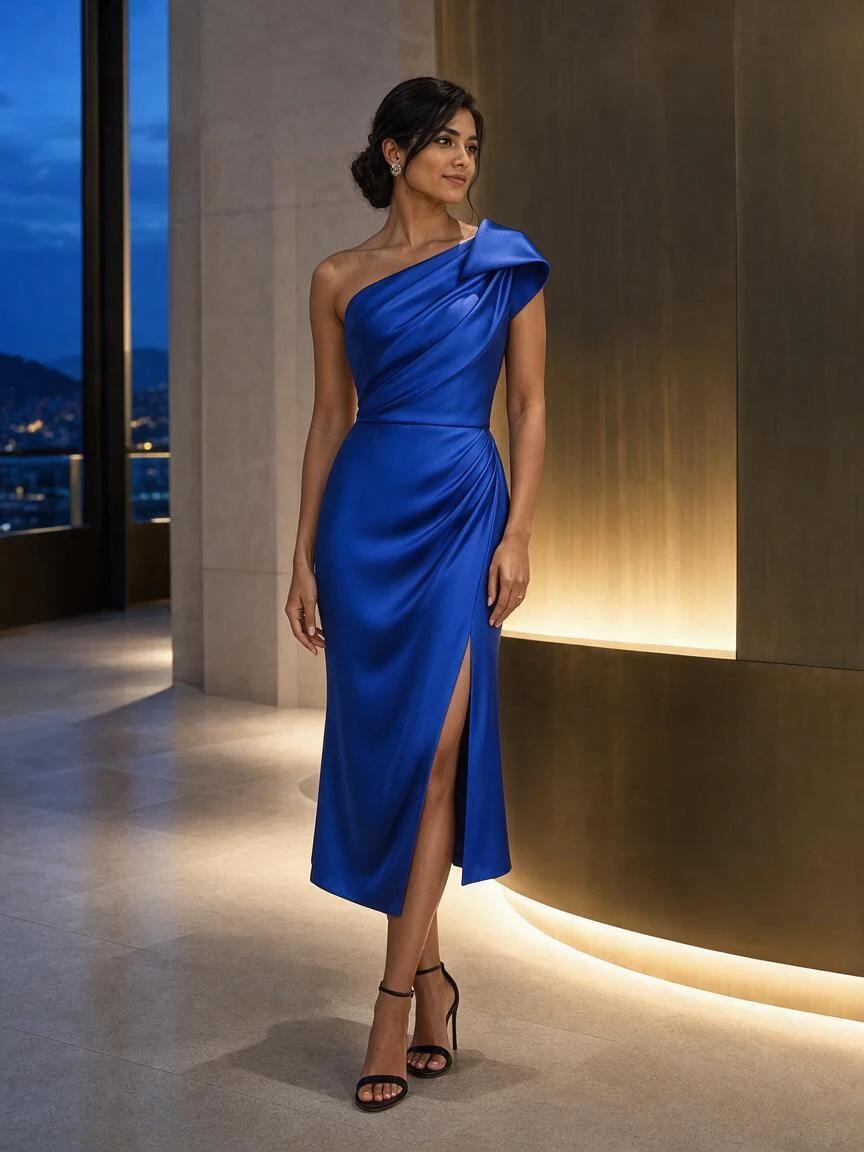
First candidate look: cobalt one-shoulder dress generated on the locked photo
Option A · Dress
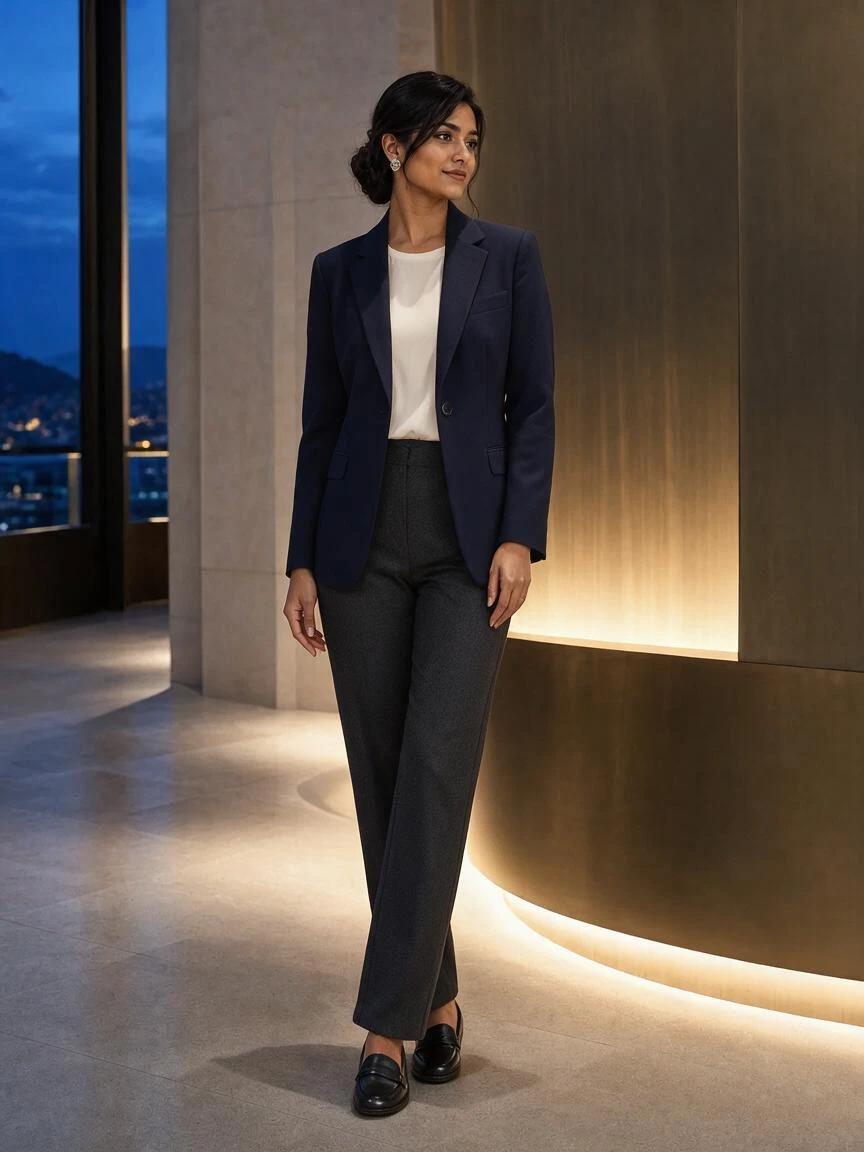
Second candidate look: navy tailored blazer and charcoal trousers on the same photo
Option B · Tailored

Keeping the exact same base portrait lets you compare silhouette, neckline, and formality without pose or lighting bias.

1. Lock one full-body photo as your control baseline

When you browse an online store, every dress or jacket is photographed on a different model in different lighting. Comparing two outfits fairly starts by uploading one consistent full-body photo of yourself and reusing it across every candidate.

  • Pick a standing photo that shows shoulders, waist, legs, and footwear clearly.
  • Neutral room lighting makes color differences between Option A and Option B easier to trust.
  • Avoid changing your person photo mid-shortlist unless a garment needs a wider crop.

2. Generate candidate looks and open the side-by-side board

Check your face and proportions with the before-and-after slider in the result preview. Then choose Try another garment to keep your person photo and upload the next reference.

  • With two results, choose Compare these two looks below Recent looks.
  • With three or more results, open Compare looks, select two to four results, and choose Compare selected.
  • Viewing the board and adding or removing existing looks are free.

3. Judge silhouette, color contrast, and occasion fit

Side-by-side previews answer visual questions product pages cannot: whether a bold color flatters your skin tone, whether a high neckline feels too formal, or which hem length balances your frame.

  • Compare neckline and shoulder width first — they change upper-body balance the most.
  • Check how the color works with your hair, complexion, and existing shoes.
  • Narrow your cart down to one or two winners before checking the retailer size chart.

Strong comparison habits

  • Test two to four distinct silhouettes or colors on the same base photo
  • Inspect face, hands, and hemline against the original photo on each look
  • Keep a consistent framing when comparing casual vs. occasion outfits

Comparison mistakes to skip

  • Comparing results generated from two completely different selfies
  • Assuming AI hem length equals exact physical garment inches
  • Re-running blurry references instead of upgrading the garment crop

Good to know

Questions, answered plainly.

Your first standard try-on works without an account, and your photos are removed automatically.

01How many outfits can I compare at the same time?

The comparison board holds two to four completed previews from the same person photo. Open it below Recent looks.

02Does using the comparison board cost extra credits?

Comparing existing previews is free. Your first Standard generation across SameMuse is free, and paid previews use 10 credits for Standard or 20 for HD.

03Should I compare with Standard or HD quality?

Use Standard (10 credits) while narrowing down three or four options quickly, then switch to HD (20 credits) on your top finalist if you want sharper fabric and edge detail.

04What if I want to compare outfit ideas without product images?

Switch to the AI Outfit Generator tool and test editable text descriptions or occasion presets on the same photo.

The fitting room is ready

See it on you before you buy it.

One free standard try-on, no sign-up. Your photos are deleted automatically after seven days.

Try your first look free